Drone Remote Controller
SweatersAppLibraries & Demo
4.236.00 Reviews
- Version
- 9.0
- Installs
- 50.00K
- Age Rating
- Everyone
Screenshots
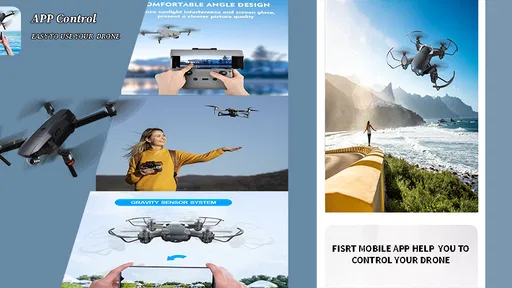
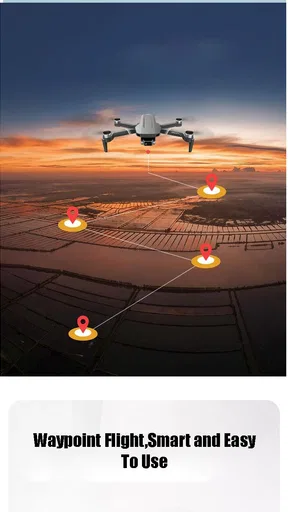
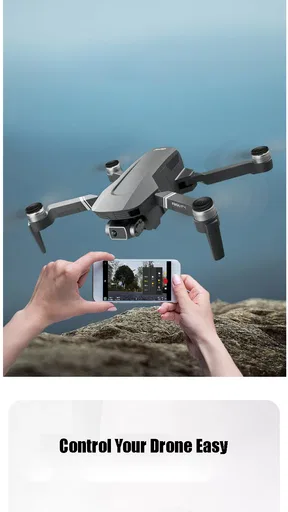
Our Review of Drone Remote Controller
 Analysis by Appyee
Using a phone as a drone controller sounds convenient, but the real question is whether the phone can give you a clear, dependable way to interact with your aircraft. Drone Remote Controller, developed by SweatersApp, is aimed at that specific situation. It belongs to the Libraries & Demo section rather than presenting itself as a full flight simulator or a broad drone-management suite, and its purpose is easy to understand: turn your phone into the display used with a drone remote controller.
I approached it as a first-time user would. I wanted to know what happens after installation, how quickly the app becomes useful, and whether it makes sense beside the usual dedicated controller display or a manufacturer’s own companion app. My overall impression is that it is most interesting for people who already have compatible drone-control hardware and need the phone to serve as the visual screen. It is less compelling for someone expecting the app alone to replace every part of a physical controller.
The app is free and rated for Everyone, which makes trying it straightforward for a household that wants to test a phone-based setup without committing to a purchase. It has reached over 50 thousand installs and holds a 4.2 average from around 393 ratings, so there is enough public use to suggest that the basic idea is useful to a portion of drone owners. I would still treat compatibility and the actual controller connection as the deciding factors, not the rating alone.
What the phone-based setup is really for
The most helpful way to understand Drone Remote Controller is to separate the physical flying controls from the phone display. A phone can be a convenient screen, but it does not automatically become a universal replacement for sticks, buttons, antennas, or the communication system built into a drone controller. That distinction matters before installation because it prevents the most common disappointment: expecting one app to discover and operate every drone.
In practical use, the app makes sense when your existing drone arrangement already expects a phone to provide the visual interface. You may have a remote controller with a phone holder, or a compact drone kit designed around a mobile display. In that situation, the phone becomes the part you can see and interact with while the physical controller remains important for the actual handling of the aircraft.
This is also why I would not describe it as a general-purpose drone pilot replacement. If your drone manufacturer supplies a dedicated application with flight settings, camera controls, firmware tools, maps, or safety prompts, that official application may remain the better choice. Drone Remote Controller is more focused. Its appeal is the display-controller relationship, not a long list of extras.
That narrower focus can be a strength. A first-time user does not have to sort through unrelated editing tools or a social feed before reaching the screen needed for the flight setup. On the other hand, a narrow tool gives you fewer ways to solve a compatibility problem. If the phone, controller, and drone do not communicate in the expected way, there is no reason to assume that installing this app will fix the connection.
The current release is version 9.0, and the app supports devices running Android 6.0 or later. That is useful for people using an older spare phone as a dedicated drone screen. Still, an older operating system does not guarantee a good experience: screen brightness, battery condition, wireless stability, and the phone’s physical fit in the controller can matter just as much.
Who will get the most from it
I see three especially sensible audiences. The first is a beginner who has a compatible drone controller and wants to use a familiar phone instead of buying a separate display. The second is an occasional flyer who keeps a spare Android phone available for outdoor use. The third is someone troubleshooting a basic phone-as-display arrangement and looking for a simple starting point before considering more expensive equipment.
It can also be useful for families. Imagine taking a small drone to an open field on a weekend. One person holds the physical controller while another helps with the phone view, checking whether the live display is ready before takeoff. That shared workflow is easier when the phone is treated as a screen and not as a magical all-in-one replacement for the complete flight system.
I would skip it if you want an app that independently flies a drone, supports every brand, or replaces the manufacturer’s full control software. I would also choose another option if your drone already has a reliable official companion app that handles the camera, connection, updates, and flight information in one place. In that case, adding a second controller-display app may create more confusion than convenience.
Installing it without creating avoidable problems
Before opening the app, I recommend preparing the phone as if it were a small piece of flight equipment. Charge it, remove unnecessary apps from the immediate workflow, and make sure the display can be read outdoors. A phone that works perfectly indoors may become frustrating in sunlight, especially when the user is trying to confirm a connection or interpret a live image.
Use the phone that will actually be attached to the controller during flight, rather than testing on one device and switching at the last moment. Different phones can behave differently with wireless connections, screen rotation, battery-saving behavior, and physical mounting. Keeping the test device and flight device the same removes one avoidable variable.
After installation, take a quiet moment to identify what the app is presenting. Do not rush directly into launching a drone. Look for the point where the phone becomes the controller display, then compare that with the physical controller’s own status indicators. The first meaningful success is not takeoff; it is a stable, understandable connection between the phone display and the controller setup.
This is a small but important change in mindset. New users often focus on whether the drone motors start, while the more useful first check is whether the phone is showing the expected control or viewing interface consistently. If the display is blank, delayed, or repeatedly reconnecting while the aircraft is still on the ground, that is the right time to stop and investigate.
A calmer first connection routine
For a first attempt, I would keep the drone powered off until the phone and physical controller are positioned correctly. Secure the phone in its holder, check that the screen is not being pressed by the clamp, and keep the cable or wireless path free from awkward bends if your setup uses one. Physical strain can look like a software fault, so it is worth eliminating it early.
Then start the controller and follow the order recommended by the equipment you own, using Drone Remote Controller as the display stage rather than guessing that any order will work. If the app presents a connection state, wait for it to settle instead of tapping through screens repeatedly. Repeatedly restarting several devices at once makes it difficult to tell which change actually helped.
A useful beginner habit is to make one change at a time. If the display does not appear, check the phone’s fit first. Next, inspect the controller connection. Only then restart the app or the equipment. This is slower than randomly toggling settings, but it gives you a repeatable process you can use later when you are away from home.
Another practical tip is to test the arrangement with the drone still on a table. Move through the display, confirm that the physical controller remains responsive, and check whether the phone stays awake. A phone that locks its screen after sitting untouched can interrupt a flight workflow, so discovering that behavior before launch is much safer than discovering it in the air.
The first successful action should be deliberately small
Once the display is stable, I would not begin with a long flight or complicated camera work. Start by confirming that the phone is showing the information you actually need from the controller arrangement. If your setup provides a live view, check that it remains present while you gently handle the controller. If it is intended mainly as a display for a particular remote system, verify that the screen behaves consistently as the controller is moved.
This small test answers several questions at once. Can you read the display from the position where you will stand? Does the phone remain securely mounted? Does the application stay in the foreground? Can you recognize a lost or interrupted connection before doing anything risky? These are more valuable first observations than simply seeing an app screen appear.
For a realistic everyday scenario, imagine preparing for a short flight in a local open area. You install the app at home, mount the phone, and complete the connection test without powering the motors. At the location, you repeat the same short routine: phone secured, controller ready, display visible, connection stable, and only then aircraft preparation. The benefit is not dramatic automation; it is reducing last-minute uncertainty.
I also like using a spare phone for this role when possible. Your everyday phone may be receiving calls, notifications, or navigation instructions at the same time. A dedicated device can make the setup less distracting, although it still needs enough battery and a display that remains readable. The trade-off is carrying another device and remembering to keep it updated and charged.
Where beginners may become confused
The phrase “drone controller” can lead people to expect direct control from the phone itself. In reality, the physical arrangement matters. If your drone relies on a dedicated remote, the app’s value may be in providing the visual display rather than replacing the remote’s controls. Treating the phone as the screen first will give you a more accurate expectation of what this app is doing.
Another source of confusion is assuming that a successful installation proves compatibility. Installation only tells you that the app can be placed on a supported Android device. The complete setup still depends on the drone, controller, phone, and connection method working together. This is why I would test with the exact equipment before planning a special flight or handing the setup to a child.
Screen size is another trade-off. A phone is more portable than a dedicated monitor, but a smaller display can make fine details harder to read outdoors. A larger phone may improve visibility while becoming less comfortable in a controller clamp. I would prioritize a secure fit and clear viewing angle over simply choosing the biggest device available.
Battery use deserves attention too. Running a bright display while maintaining a wireless connection can make the phone’s charge fall faster than normal browsing. I would begin every flight with a comfortable charge level and avoid relying on the same phone for navigation home afterward. This is not a special feature of the app so much as a practical consequence of using a phone as active flight equipment.
If the display freezes, I would avoid continuing to fly by instinct or relying on memory. Bring the aircraft back or stop the activity according to the safe procedure for your equipment, then troubleshoot on the ground. A phone-based display is helpful only while it is dependable. The moment it becomes uncertain, the correct response is to reduce risk rather than keep experimenting in the air.
How it compares with the usual alternatives
The most obvious alternative is the drone maker’s official companion app. That option is usually preferable when you need a complete ecosystem around one model, including model-specific controls and setup guidance. Drone Remote Controller becomes more attractive when your immediate need is a straightforward phone display for an existing remote arrangement and you do not want a more elaborate interface than necessary.
A dedicated controller with its own built-in screen is another alternative. It can be more convenient because it reduces the number of separate devices and may offer a purpose-built outdoor display. The downside is cost and less flexibility. Using a phone lets you reuse hardware you already own, but you must manage mounting, charging, screen visibility, and the phone’s other interruptions.
There is also the option of using no additional display at all, depending on the drone and controller. That may be fine for very simple flying, but it removes visual information that can make framing, orientation, and connection awareness easier. In my view, the app earns its place when the phone display adds information you genuinely use, not merely because having an extra screen feels more advanced.
Compared with a general library or demonstration utility, this app is unusually practical for a specific hardware workflow. Its category may sound broad, but the useful question is concrete: does your controller setup need an Android phone as its display? If yes, the focused design can be welcome. If no, the category label will not make it useful for your particular drone.
Small workflow improvements that make a difference
My first recommendation is to create a repeatable preflight order and keep it short. Put the phone in the holder, open the app, confirm the display, check the physical controller, and only then proceed with the drone. Repeating the same order helps you notice when one part changes, and it prevents the excitement of a new flight from turning setup into guesswork.
Second, test the phone at the actual viewing angle. A screen can look clear while held in your hand and become difficult to read when tilted inside the controller mount. Adjusting the angle before the drone is active is easier than trying to solve visibility while standing in an exposed field.
Third, keep a fallback plan. That does not mean carrying a second controller for every casual flight, but it does mean knowing how you will stop safely if the phone display becomes unavailable. The app is a convenience layer in the setup, so your safety decisions should not depend on pretending that a convenience layer cannot fail.
Finally, avoid installing it immediately before an important outing without testing. The free price makes experimentation easy, but compatibility is still something you should establish with your own phone and equipment. A ten-minute table test can tell you more than a long list of general expectations.
Who should install it now
I would recommend giving Drone Remote Controller a try if you have an Android phone running version 6.0 or newer, a drone arrangement that expects a phone display, and a preference for using hardware already in your pocket. It is especially sensible for beginners who want a calm first setup rather than a complicated control center. The Everyone age rating also makes it approachable for shared household use, provided an adult handles the safety decisions around actual flight.
I would be more cautious if you are buying a drone specifically because you want a complete phone-only experience. In that case, start with the drone manufacturer’s compatibility guidance and official application. This app should be viewed as a focused part of a controller-display workflow, not as a universal promise that every aircraft will work with every phone.
My final view is positive but deliberately practical. SweatersApp has made a free tool for a clear need, and the 4.2 average from its user ratings suggests that many people find that need worth addressing. The app is not a substitute for understanding your drone’s hardware, and it cannot remove the ordinary responsibilities of charging, mounting, checking, and flying carefully. What it can do is make the phone-display portion of a compatible setup more accessible.
If you approach it in that way, the path to success is reassuring: install it on the phone you will actually use, mount the device securely, establish the display connection on the ground, and make the first test deliberately small. For me, that is where Drone Remote Controller makes the most sense. It is a useful bridge between an existing drone remote and a phone, not a universal replacement for the complete flight system.
Verdict
Strengths of Drone Remote Controller
- Simple controls make basic drone operation easy for beginners.
- Provides a convenient alternative to carrying a physical remote.
- Responsive input helps make short flights feel more manageable.
- Useful for checking compatibility before buying a replacement controller.
- Compact interface takes up little storage space on the device.
Limitations of Drone Remote Controller
- Connection quality may vary depending on the drone and phone model.
- Some features may require Bluetooth, Wi-Fi, or location permissions.
- Touch controls can feel less precise than physical joystick controls.
- The phone battery may drain faster during longer flight sessions.
- Not all drone models may be supported or detected automatically.
Similar Picks in This Category
View All
PGT: GFX, Launcher & Optimizer
Trilokia Inc.4.5

AusweisApp Bund
Governikus Service GmbH3.7

Cardboard
Google LLC3.2

Gamers GLTool with Game Tuner
Trilokia Inc.4.5

Multi Web Chat - Read Secretly
World Scan & Cleaner3.8

App Cloner Premium & Add-ons
App Listo1.9
Frequently Asked Questions
What is Drone Remote Controller, and what can I use it for?
Drone Remote Controller is a mobile application designed to connect compatible drones with an Android or iOS device. After pairing, the app may let you view the live camera feed, control flight direction, adjust altitude, take photos, record videos, and review basic flight information. Its exact functions depend on the drone model, firmware, and the controller connection method.
Which drones and smartphones are compatible with Drone Remote Controller?
Compatibility is the most important detail to check before downloading. Drone Remote Controller may not work with every drone, even if the devices use similar wireless technology. Review the app listing and your drone’s manual for supported models, operating-system versions, and required permissions. Some features may also require a specific remote controller, camera system, or updated drone firmware.
How do I connect my drone to the Drone Remote Controller app?
To connect, turn on the drone and its remote controller if one is required, then enable the connection method described in the manufacturer’s instructions, such as Wi-Fi, Bluetooth, or a dedicated cable. Open the app and grant the requested permissions, including location or local-network access when necessary. Keep the phone close to the drone and avoid pairing with another device during setup.
Does Drone Remote Controller require internet access or an account?
The app may be able to control a previously configured drone without a continuous internet connection, but internet access can still be needed for downloading the application, signing in, activating the device, checking firmware, loading maps, or synchronizing flight records. Account requirements vary by drone brand and app version. It is best to complete registration and updates before flying outdoors.
Is Drone Remote Controller safe and reliable for actual flights?
The application can be useful for casual flying, camera control, and monitoring, but it should not replace responsible piloting or the drone manufacturer’s safety guidance. Test the connection, controls, battery information, return-to-home settings, and emergency procedures in an open area before a serious flight. Always follow local aviation rules, maintain visual contact, and land immediately if the connection or telemetry becomes unstable.
